
The most private AI note taker keeps your audio on the device. VoiceScriber is the 100% offline iPhone pick for recording and transcribing without an account. Choose Granola for bot-free meeting summaries or Fellow if your team needs shared notes and admin controls.
Quick answer
For the most private iPhone transcription, VoiceScriber records and transcribes entirely on the device. Granola is best for bot-free meeting summaries and discards audio after transcription. Notta is the best Wave alternative for switching between cloud summaries and local transcription on a computer. Private Notes is the best free pick for occasional offline iPhone summaries, with three recordings per month. Fellow is best for teams that need recording permissions, retention controls and a business associate agreement.
AI note taker privacy comparison
Checked November 2026. Prices are in US dollars. The offline column refers to making a new transcript. App Store privacy labels reflect the developer’s disclosures for the iOS app.
| App | Best for | Platforms | Price | Where audio is processed | Works offline | Account needed | Trains on your data | App Store privacy label |
|---|---|---|---|---|---|---|---|---|
| VoiceScriber | Private voice-to-text | iPhone | Free to try. US$5.99/week or US$49.99 once | On iPhone | Yes | No | No, audio never leaves the phone | Data Not Collected |
| Granola | Bot-free meeting summaries | Mac, Windows, iOS, Android, Apple Watch | Free, 30-day history. Paid from US$14/user/month | Cloud | No | Yes | Anonymized data used internally by default on Basic and Business. Opt-out available. Enterprise defaults off | Data Linked to You |
| Private Notes | Occasional local summaries | iPhone | Three free recordings/month. US$4.99/month or US$24.99/year | On iPhone | Yes, with compatible hardware for summaries | No | Meeting content stays out of vendor systems | Data Not Linked to You, purchases |
| Wave | Cross-device recordings and playback | iOS, Android, web, desktop, Apple Watch, Wear OS | Free, 30 min/month. Pro US$15/month or US$80/year on web | Cloud | Records offline, transcribes after upload | Yes | No, per Wave | Tracking, linked and unlinked data |
| Fellow | Team controls and shared recaps | iOS, Android, Mac, Windows, web | Five free AI recordings per user, lifetime. Team from US$7/user/month billed annually | Cloud | No | Yes | No, per Fellow | Data Linked to You |
| Notta | Cloud summaries plus a local desktop mode | iOS, Android, Mac, Windows, web | Free, 120 min/month with a 3-min cap per recording. Pro US$13.49/month or US$97.99/year on web | Cloud by default. Local in paid desktop Privacy Mode | Desktop Privacy Mode after setup | Yes | No in Privacy Mode. Enterprise lists no training. Other cloud plans unverified | Tracking and unlinked data |
| Apple Notes | Built-in iPhone transcription | Apple devices, iPhone 12 or later for this feature | Included with iPhone | Apple speech transcription. Exact processing path unverified | Full offline workflow unverified | No for On My iPhone storage | Feature-specific policy unverified | Linked and unlinked data |
| Otter | Live cloud transcripts and playback | iOS, Android, Mac, Windows, web | Free, 300 min/month. Pro US$16.99/user/month at standard monthly price | Cloud | Can keep recording during a connection loss. Transcription resumes online | Yes | Uses de-identified recordings and transcriptions for internal training | Tracking and linked data |
Apple Notes is worth checking for live transcription on a supported iPhone you already own. If you’re moving away from Otter’s cloud workflow, see the guide to private, offline Otter alternatives.
How to judge an AI note taker’s privacy
- Find out where each step runs. On-device transcription means your phone or computer turns audio into text. A summary is a second step. Check whether the app sends the transcript to a separate AI provider. “Bot-free” describes how the app captures a meeting. Check processing and storage in the vendor’s security docs. On-device and cloud transcription explained.
- Try a new recording in Airplane Mode. Do this after any required setup or model download. Turn off Wi-Fi too, record a few sentences and wait for a transcript. If you need summaries, generate one before reconnecting. An app can keep recording offline and automatically upload the file later. Check what happens after the connection returns.
- Check sign-in and sync separately. Look for an account requirement, then check whether recordings, transcripts and summaries sync. On a phone, a backup setting can change where a copy lives even if transcription runs locally. If all you need is capture and playback, start with the guide to private voice recorder apps.
- Follow a recording through deletion. Look for retention times for audio, transcripts and summaries. Check whether Delete moves the item to Trash and whether a separate control removes it permanently. Look up how long backups last. A vendor can discard the audio and retain the text for as long as your account is open.
- Read the training rule for your plan. Check whether training starts automatically, whether you can opt out and whether the setting covers the vendor and its AI providers. A no-training commitment limits how content is reused. The service can still process and store that content to deliver your notes.
- Read the label and the security terms together. The App Store label summarizes what the developer says it collects, including purchases or diagnostics. End-to-end encryption means only the intended endpoints hold the keys to read the content. A promise of encryption in transit and at rest leaves open who holds the keys. SOC 2 describes an independent examination of specified controls. Type 1 looks at their design at a point in time. Type 2 also examines how they operated over a period. HIPAA is a US law for covered health information. If it applies to your organization, check whether your plan and recording workflow are covered by a signed business associate agreement.
- Check who knows you’re recording. Tell people before you start, say what will be saved and who will receive it, and get any required permission. Use the same approach with a phone on the table, a bot in the call or an app silently capturing computer audio.
The 6 best AI note takers for privacy and accuracy
1. VoiceScriber: best for private voice-to-text on iPhone
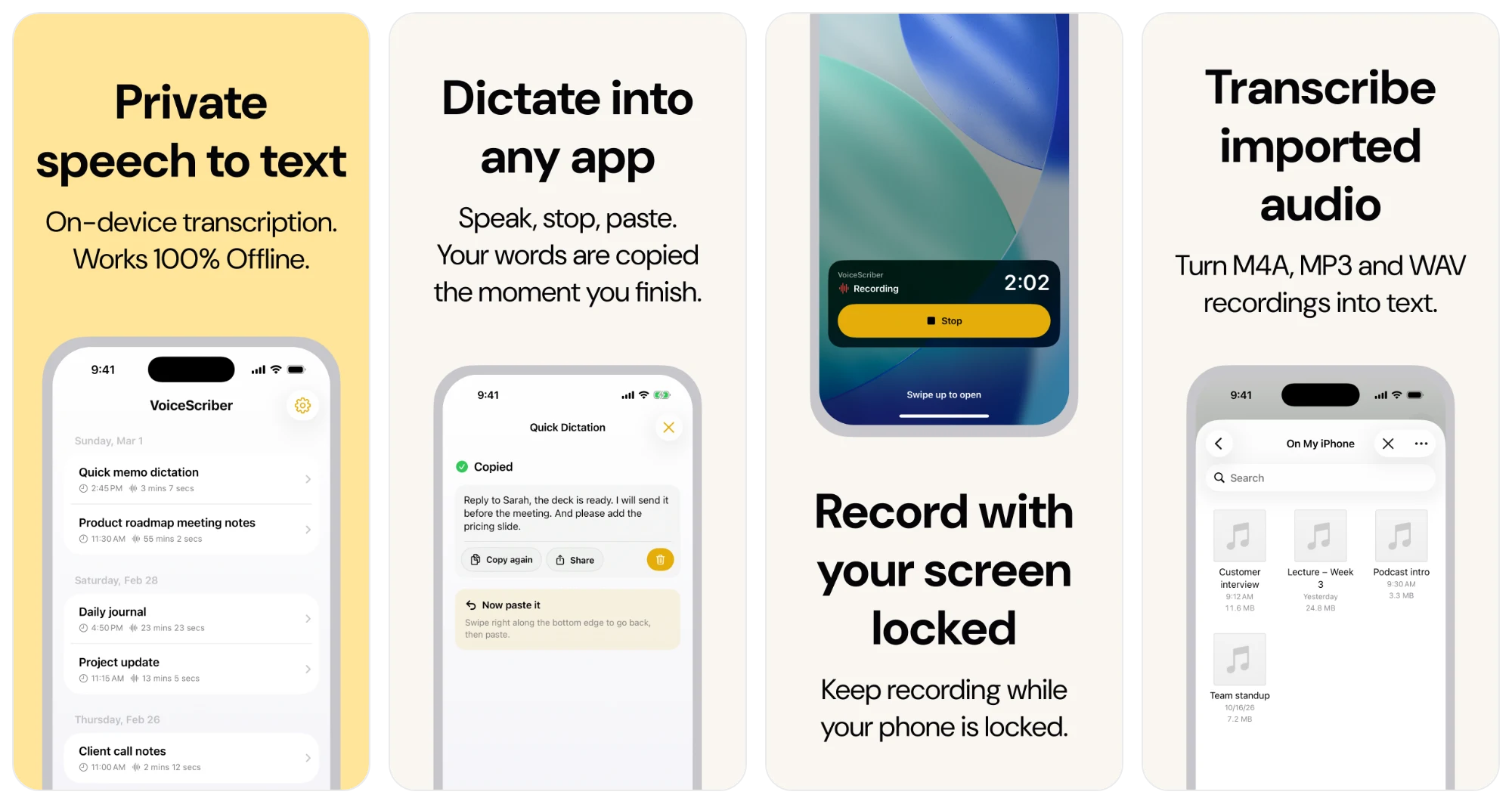
Pick VoiceScriber if you want the words from a conversation, lecture or personal voice note and want the recording to stay on your iPhone. It records and transcribes 100% offline, works in Airplane Mode and requires no account. There’s no audio upload or cloud transcription server. Recordings, transcripts and notes stay on the phone unless you export or share them. The App Store lists Data Not Collected.
The app requires iOS 18.0 or later. You can record for up to 90 minutes, including while the screen is locked, or import M4A, MP3 and WAV files up to 90 minutes each. Transcription supports 100+ languages. Choose the spoken language in Settings if you know it, or use automatic detection. After you tap Stop, you can edit, search, copy or export the transcript. Quick Dictation in version 1.9.0 can open the app already recording from Control Center and copy the finished text after you stop.
For a clearer transcript, put the phone near the people speaking and keep it away from noisy equipment. If you’ll reuse the text in a report or quote someone from an interview, check names, numbers and any words spoken while people were talking over one another. You can correct those details in the transcript before you share it.
The limit is the workflow. You get text after recording, with no live captions, AI summaries, rewriting or speaker labels. There’s no meeting bot, call or computer-audio capture, shared workspace or sync. If you need an assistant to generate action items and send them around, choose a meeting-focused pick below. If your priority is to keep the original audio off a server, this is the iPhone pick.
It’s free to download and try. Weekly costs US$5.99 and Lifetime costs US$49.99 once. Prices may vary by country. See VoiceScriber pricing.
2. Granola: best for bot-free meeting summaries
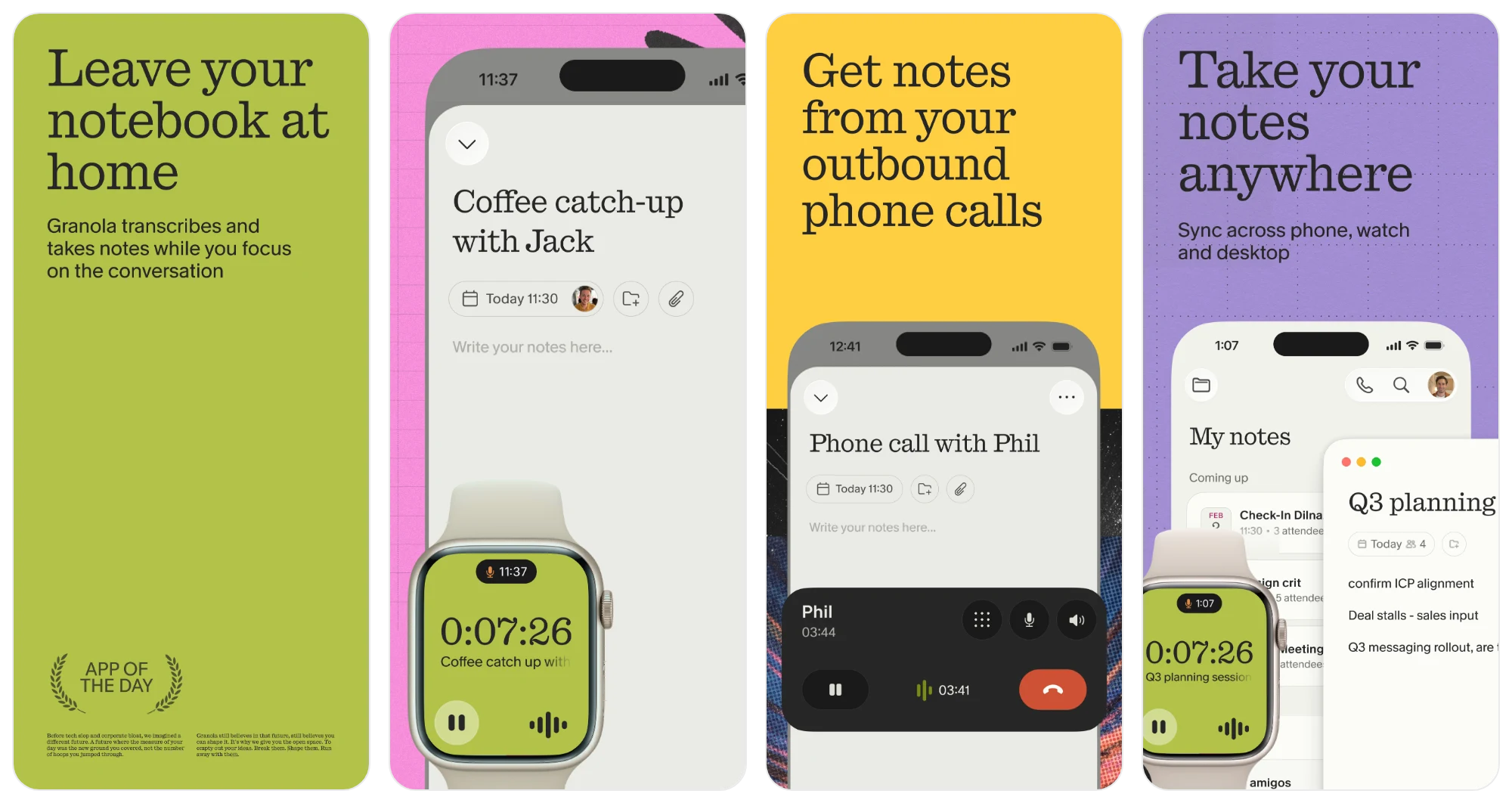
Granola suits people who like to jot down a few points during a call and want a fuller recap afterward. Start it on your computer and it captures meeting audio without sending a bot into the call. On a phone, it can capture in-person conversations and process the audio afterward. It uses your rough notes and the transcript to generate a recap, so you can give the summary some direction while the meeting is happening.
Transcription and summaries run in the cloud. Granola names Deepgram and AssemblyAI for transcription and OpenAI and Anthropic for AI processing. It discards the source audio after transcription. The transcript and notes stay in its US-hosted AWS environment by default until deleted. You can delete a note or your account, and Granola offers transcript auto-deletion settings. The source audio is unavailable to replay, so confirm anything you’ll need to quote while the meeting is fresh.
Third-party model providers can’t train on your meeting data, according to Granola. Granola’s own training on anonymized data is on by default on Basic and Business. To turn it off, go to Settings > Preferences > Data & sharing and switch off Use my data to improve models for everyone. Enterprise defaults to training off. For transcription, the help center lists 31 desktop languages and 17 on mobile. Desktop can handle language changes mid-meeting in Auto mode. Mobile selects one language for the conversation.
Basic is free with 30 days of visible meeting history. Business is US$14 per user per month and Enterprise is US$35 per user per month. The free history window determines what you can see. Granola documents storage and deletion separately. Compare private and bot-free meeting transcription tools.
3. Private Notes: best free option for occasional offline summaries
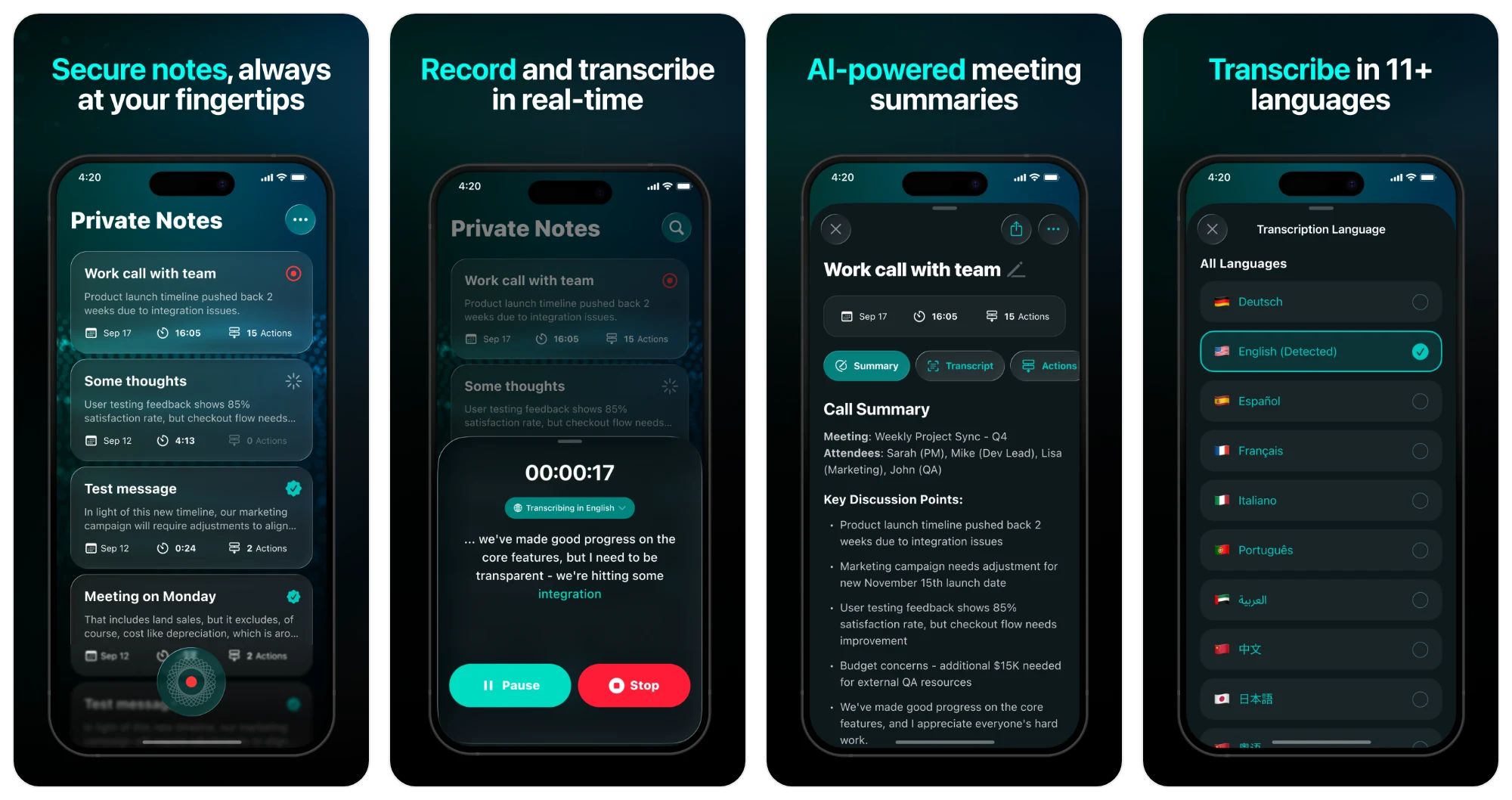
Private Notes - AI Note Taker by App Incubator is the pick if you want a recap and action items from a few in-person conversations each month. The iPhone app shows a live transcript using Apple speech recognition and generates summaries on the phone using Apple Intelligence on a supported iPhone. The developer says recording, transcription and summary generation work in Airplane Mode. It requires no app account or meeting bot.
The App Store description lists 10 transcription languages, including English, Arabic, French, Japanese and Spanish. Check speech recognition for your language and Apple Intelligence eligibility before subscribing. During a recording, watch the live text for names or numbers that came through incorrectly. Look at the transcript before acting on an automatically assigned task. A clean-looking recap can still turn a suggestion into something that reads like a decision.
Notes stay on the iPhone by default and can be deleted in the app. The listing describes optional encrypted iCloud sync for Premium. Leave it off if you want the app to keep a single local copy. The developer says its payment processor gets subscription information, while meeting content stays outside its systems. The App Store reports purchase data that may be collected without being linked to you.
Free includes three recordings per month with no published length cap per recording. Premium costs US$4.99 monthly or US$24.99 yearly and removes the monthly recording cap. The app requires iOS 26 or later, and automatic summaries require an Apple Intelligence-enabled iPhone. The free tier can be enough for occasional interviews or planning sessions. A daily recording habit will use the allowance quickly.
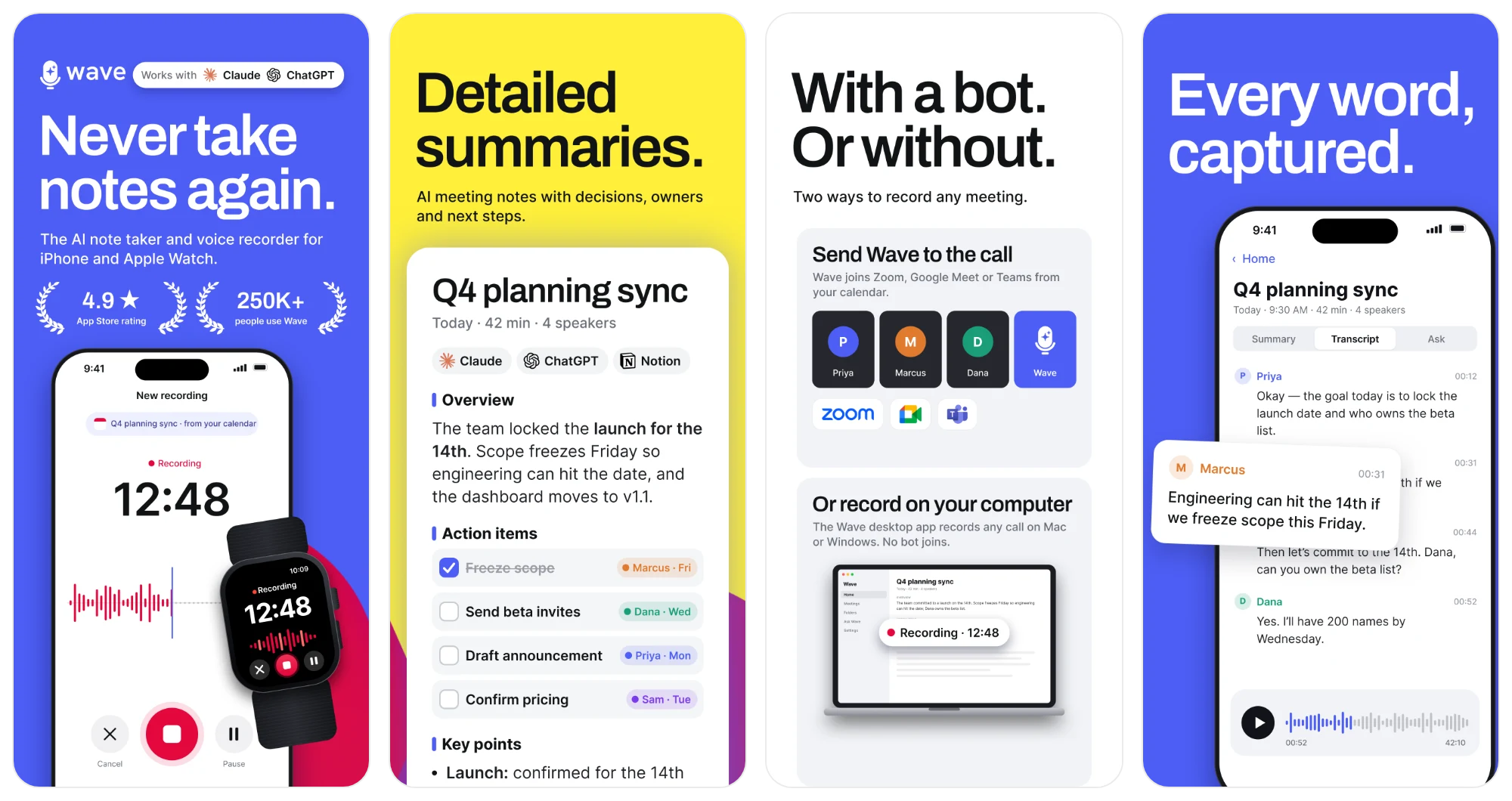
4. Wave AI Note Taker & Recorder: best for recordings across devices
Wave AI Note Taker & Recorder is a good fit if you record on your phone, review transcripts in a browser and need to replay the original audio later. It has Android and web versions as well as its iPhone app, with additional desktop and watch options. The desktop app can capture computer audio without a bot. If you want Wave to attend a supported calendar meeting, you can send its optional meeting bot.
A phone recording can finish offline and upload once you reconnect. Wave sends the recording to AssemblyAI for transcription, with Gladia as backup, then uses OpenAI for summaries and Anthropic for assistant and chat features. Wave says that it and its processors do not use your audio, transcripts or summaries for training. It documents encryption in transit and at rest and a SOC 2 Type 1 report. Its App Store label includes identifiers used for tracking and linked user content.
Wave keeps the cloud recording available for playback by default. You can remove the audio while keeping the transcript and summary, or set automatic audio retention. A deleted session can remain in Recently Deleted for 30 days. If you purge it, Wave says it removes the live copy immediately and its disaster recovery copies expire within seven days. For accuracy, Wave lists 76 languages and lets you add custom vocabulary. With a recording available, you can listen back when a name or quotation looks wrong.
Free includes 30 minutes a month. Pro lists unlimited recording and transcription at US$15 monthly, US$80 yearly on the web or US$100 yearly via the mobile stores, per Wave’s pricing page. Teams starts at US$8.33 per user per month for five to nine seats, billed yearly, with lower rates for larger teams. The trade-off for a synced library and playback is that Wave holds the audio until your settings or a deletion remove it.
5. Fellow: best for teams that need recording controls
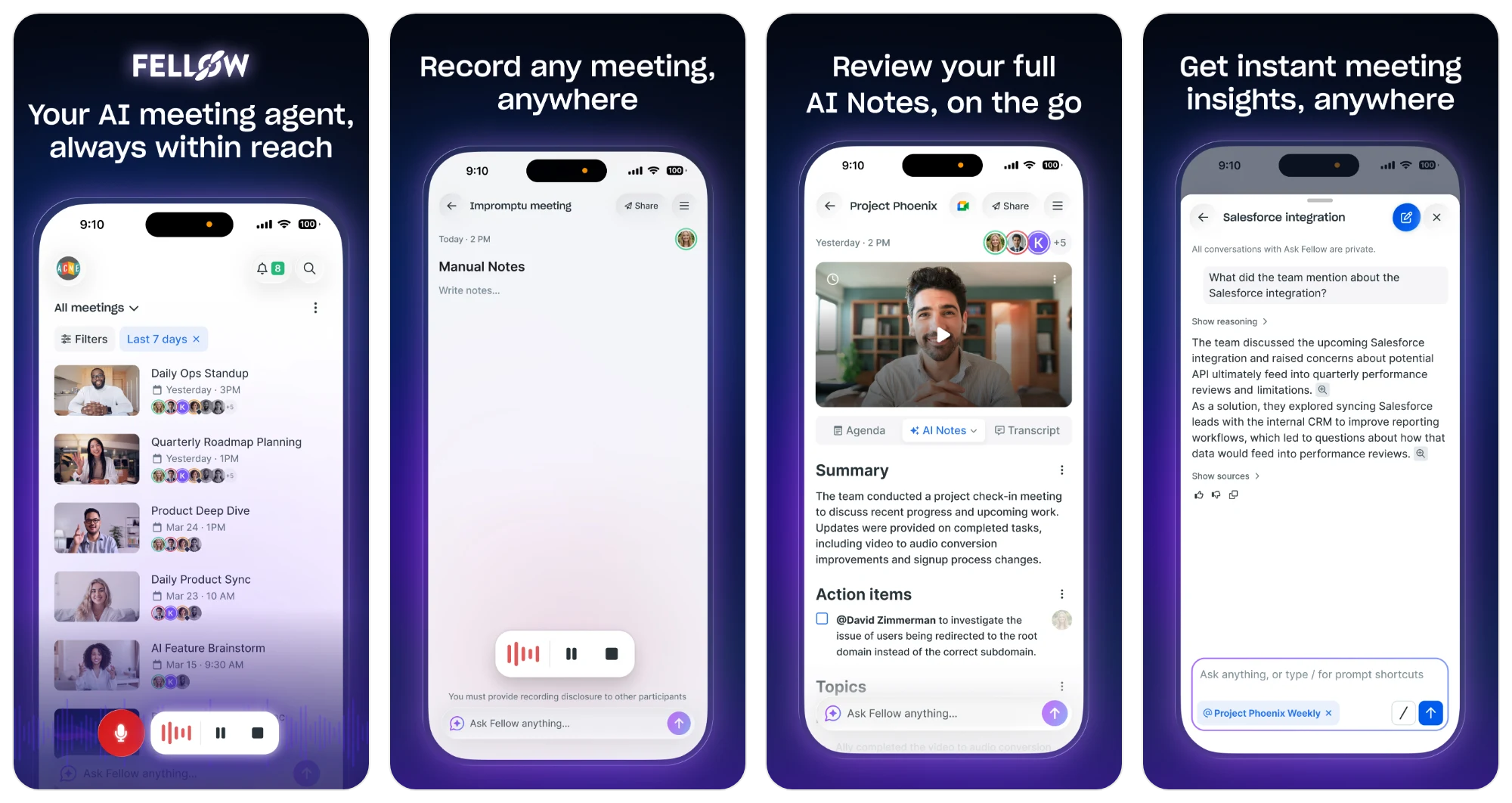
Fellow suits teams that want meeting agendas, transcripts, recaps and action items in one shared workspace. Its bot can join scheduled calls, and it offers botless capture for supported desktop and mobile workflows. If you’re choosing a tool for a team, check which capture options your colleagues will have on their actual devices and which people can enable automatic recording.
Fellow processes meeting audio and summaries in the cloud. Its subprocessor list includes AssemblyAI for transcription, Deepgram for some legacy customers, and OpenAI and Anthropic for generative text. Fellow says customer data isn’t used to train models. In its documented bot workflow, transcripts and summaries stay with the meeting note by default. Admins can schedule deletion, and Fellow says backups can retain admin-deleted meeting data for up to 30 days.
Fellow documents 100 transcription languages. For a hybrid meeting, check the transcript’s speaker labels before assigning actions, especially if several people share one microphone. The language help lists exceptions for hybrid speaker identification. Fellow also publishes SOC 2 Type II and offers business associate agreements. If your organization needs a BAA, ask Fellow to confirm the terms and the specific recording and sharing workflows it covers.
Free includes five lifetime AI recordings and five lifetime AI notes per user. Team costs US$11 per user monthly or US$7 per user per month billed annually. Business costs US$23 monthly or US$15 per user per month billed annually. Enterprise starts at US$25 per user per month billed annually with a 10-seat minimum. The five-recording free allowance goes quickly, and some controls need a paid team plan.
6. Notta: best for cloud notes with a local desktop option
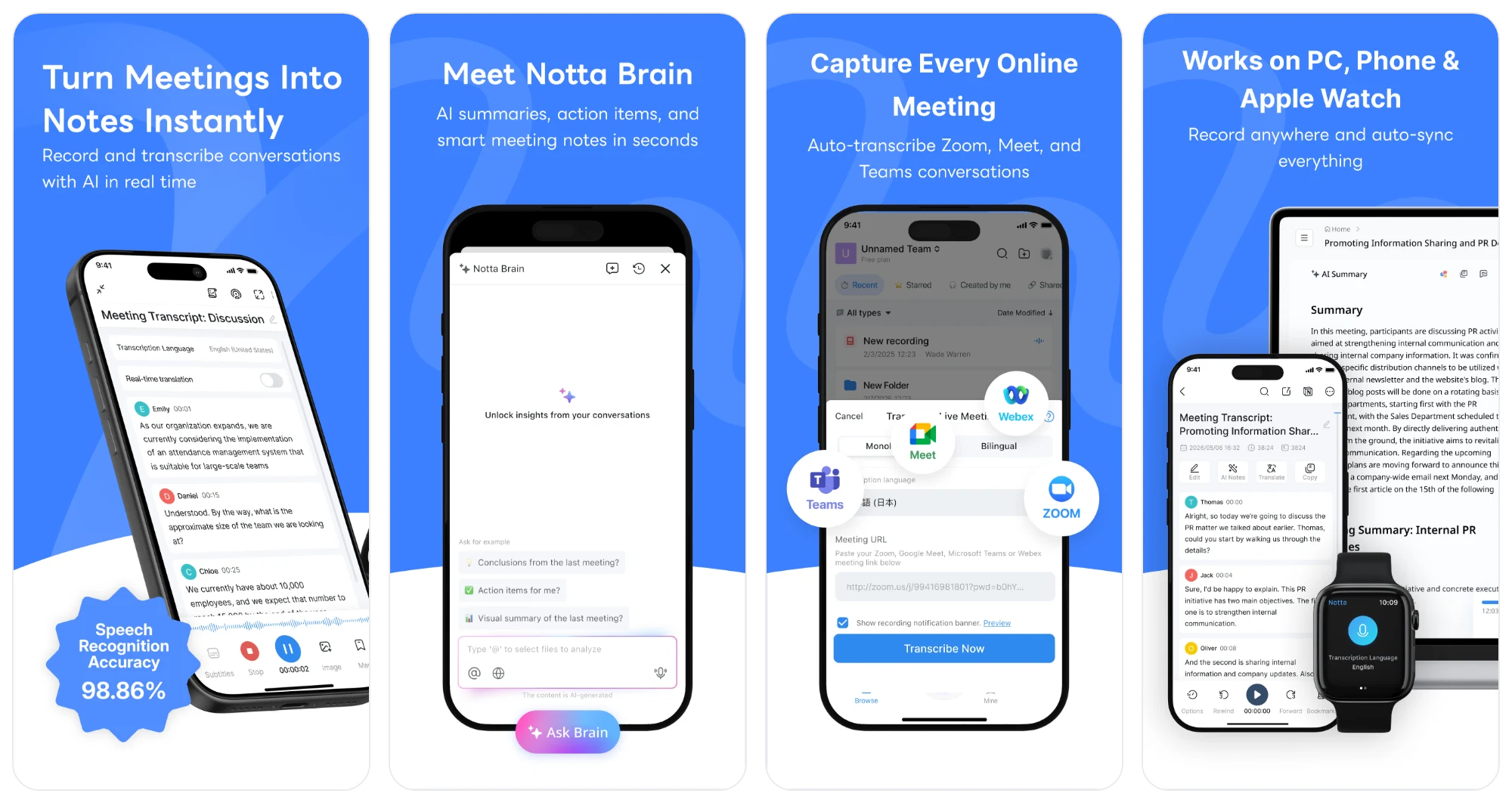
Notta suits readers who normally want cloud transcripts, summaries and sync but sometimes need to transcribe a recording locally on a Mac or Windows PC. Standard Notta works across phone, web and desktop. It offers a bot for supported online meetings and separate bot-free desktop capture. The iPhone and Android workflow requires a connection for recording and transcription, per Notta’s mobile help.
On eligible paid desktop plans, switch to Privacy Mode before you start. After you install the speech model, audio and transcripts stay in the folder you choose. Notta says the mode needs periodic online license validation. Cloud summaries and sync are unavailable for those local records. If you later want the cloud workflow for a particular file, export it and import it separately in Cloud Mode.
Notta lists 65 languages for monolingual cloud transcription. The standard desktop offline engine supports four, and Apple Speech Analyzer offers 11 on supported Macs. Notta advertises 98.86% transcription accuracy for its service. That is the vendor’s figure. Check the actual engine and language you’ll use on a familiar recording, especially if you plan to rely on the offline mode.
For cloud use, check retention before recording sensitive material. Transcription data stays indefinitely by default. Deleted items can remain in Trash for 30 days, and some backup copies can last up to one year. Notta lists no data training on Enterprise and says local Privacy Mode content is excluded. An equivalent commitment for the other cloud plans is unverified.
Free gives 120 transcription minutes and 10 AI summaries per month, with a three-minute cap per recording. Web Pro costs US$13.49 monthly or US$97.99 yearly. Business costs US$27.99 per seat monthly or US$199.99 yearly. Enterprise is custom. The short free recording cap matters more than the monthly total if your main use is full meetings or lectures.
Wave AI Note Taker alternatives
The best Wave alternative depends on which part of Wave you want to replace. For private recordings on iPhone, choose VoiceScriber. It transcribes in Airplane Mode, requires no account and offers a US$49.99 Lifetime purchase. For occasional iPhone recordings that need an AI recap, Private Notes gives you three free recordings a month and local summaries on a compatible phone.
Choose Granola for bot-free call summaries and no retained source audio. Its free plan shows 30 days of history, so check that window before relying on it for an archive. Choose Notta if you need Android, web or desktop access and want a paid local transcription mode on Mac or Windows. If you mostly use Wave for long interviews or podcast recordings, compare the per-recording cap and whether you can replay the source audio. Granola discards it, and Notta’s free tier stops transcribing after three minutes per recording.
Bottom line
Choose VoiceScriber if you want to record and transcribe on iPhone with no upload or account, with a US$49.99 one-time option. Choose Private Notes for occasional local summaries, Granola for meeting recaps without retained audio or Fellow for a team that needs admin controls. Wave is useful when you want the recording available for playback across devices, while Notta gives you a separate paid workflow for local desktop transcription. For any transcript you’ll share or act on, check the names, numbers and decisions against what was said.
FAQs
Which AI note takers are fully local?
VoiceScriber is a fully local option for recording and transcribing voice notes on iPhone. It needs no account and keeps the recordings and text on the phone unless you export or share them. Private Notes also offers local summaries on a compatible iPhone, with optional iCloud sync you can leave off.
Which AI note takers work without internet?
VoiceScriber records and transcribes in Airplane Mode. Private Notes can also summarize offline on a supported iPhone. Notta offers local transcription in its paid desktop Privacy Mode after setup and license validation. Wave can record while offline and needs a connection to upload and generate the transcript.
How do leading AI note takers compare on privacy?
Start with where the audio goes and what the service keeps. Granola processes audio in the cloud and discards it after transcription, while keeping notes and transcripts. Wave retains audio for playback by default and lets you set an audio retention limit. Fellow adds workspace retention controls. The comparison table also shows who requires an account and whose training settings you can change.
What is the best alternative to Wave AI Note Taker?
Choose VoiceScriber to keep audio on an iPhone and get a transcript. Choose Granola for bot-free meeting summaries or Notta for cross-platform access with an optional local desktop mode.
What is a good app for taking private voice notes?
Use VoiceScriber if you want to capture a personal thought or interview and turn it into searchable text on your iPhone. If you also want a summary and action items on the phone, Private Notes offers those features on supported iPhones.
Is it legal to use an AI note taker?
In the US, federal law generally allows recording with consent from one participant, which can be you if you’re part of the conversation. Some states require everyone’s consent, and rules can vary by the type of conversation and where participants are located. Tell everyone before recording and ask for permission, including when your app uses no visible bot. Reporters Committee recording guide.
Do AI note takers train on my data?
It depends on the app and plan. Wave and Fellow say they don’t train on customer content. Granola uses anonymized data for internal training by default on Basic and Business, and you can opt out. Otter says it trains its own models on de-identified recordings and transcriptions. Check whether a policy covers both the app maker and its AI providers.
Does VoiceScriber generate AI summaries?
VoiceScriber gives you an editable transcript after you tap Stop. It omits AI summaries, rewriting and speaker labels. Choose it when you want the words captured privately on your iPhone. Choose a summaries pick if you need decisions and action items extracted for you.
Sources
All sources checked on November 25, 2026.
- VoiceScriber. App Store and version history, Pricing, Privacy policy.
- Granola. App Store, Pricing, Security and retention, Processing architecture, Model training, Language help.
- Private Notes, App Incubator. App Store and version history, Product site, Privacy policy.
- Wave. App Store, Google Play, Pricing, Privacy policy, Security, Data processing addendum, Platforms and languages, Capture options, Offline uploads, Desktop support, Custom vocabulary.
- Fellow. App Store, Pricing, Solo plan, Mobile apps, Recording modes, Subprocessors, Retention and deletion, Privacy controls, Security and BAA, Languages.
- Notta. App Store, Pricing and limits, US billing amounts, Privacy policy, Plan features, Privacy Mode, Mobile connectivity, Languages, Storage, Deletion and backups.
- Otter. App Store, Pricing, Privacy policy, Privacy and security, Subprocessors, Languages, Offline recording, Deletion.
- Apple Notes and Voice Memos. Notes App Store, Notes audio on iOS 27, Notes storage settings, Voice Memos App Store, Voice Memos transcription on iOS 27, Apple release index, App Store label definitions.
- Consent and security terms. Reporters Committee recording guide, HHS guidance on HIPAA and cloud computing, AICPA SOC 2 criteria, AICPA example Type 2 report.