
You can transcribe a Voice Memo on iPhone without uploading it to a web transcription service. Export the recording to Files as an M4A, then import it into an on-device transcription app. This creates an editable transcript while the audio remains on your iPhone.
Direct answer
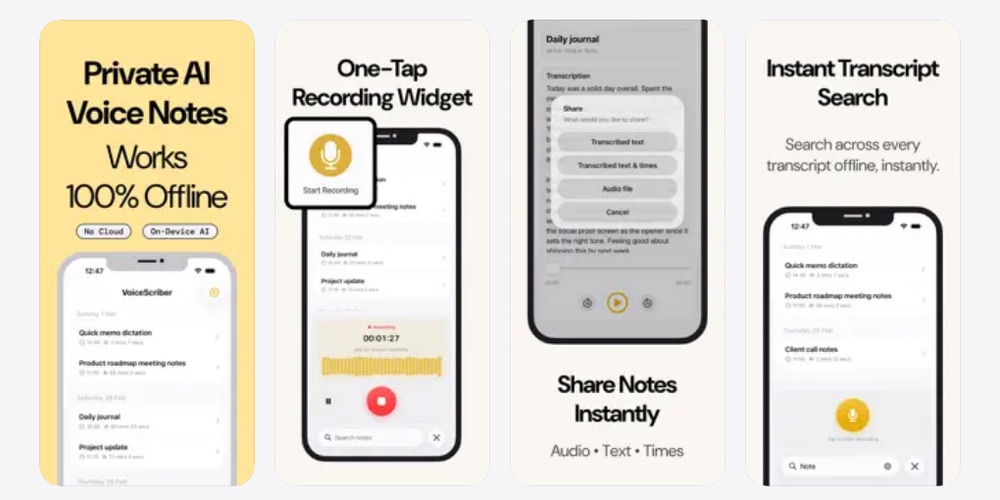
For an offline, no-upload iPhone workflow, export the Voice Memo as M4A and import it into VoiceScriber. It transcribes on-device, accepts M4A, MP3, and WAV files, and lets you edit, search, tag, share, or export the completed text.
If you need to capture new audio with the display off before transcribing it, compare hidden and private voice recorder apps that keep recording with the screen locked.
Does Apple Voice Memos transcribe audio?
Yes, when your device, language, and region are supported. Apple says Voice Memos can show transcription while you record or after you save the recording. The feature is available on iPhone 12 or later for English variants, Spanish, Portuguese, Italian, French, German, Japanese, Korean, Simplified Chinese, and Traditional Chinese. It is not available in every country or region. (Apple Support)
Open a recording, tap More, then choose View Transcript to copy selected text or Copy Transcript to place the entire transcript on the clipboard. Apple also says a recording from iOS 17 or earlier can be transcribed automatically when it contains speech and the current device, language, and region are supported. (Apple Support)
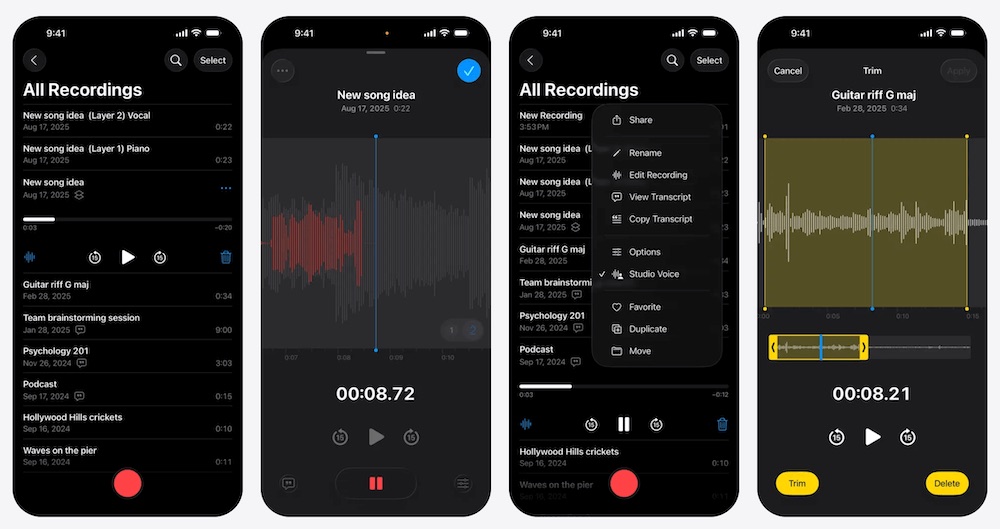
When Apple Voice Memos is enough
- The transcript option appears for your recording.
- The spoken language is in Apple’s published list.
- You need text to read, copy, or search, rather than a dedicated note workflow.
- You do not need to import a separate MP3 or WAV file.
It is the fastest free option when it works. Apple’s current Voice Memos guide does not state the connectivity requirement or processing location for transcription, so use the local import workflow below if an explicit no-server path is important.
How to export a Voice Memo and transcribe it offline
Exporting the memo as M4A is the simplest route for a file you already recorded. Apple documents M4A as the default Voice Memos export format, and the current VoiceScriber App Store listing documents direct M4A, MP3, and WAV import. (Apple Support; App Store)
- Open Voice Memos. Tap the recording you want to turn into text.
- Open sharing. Tap More, then tap Share.
- Save to Files. Choose Save to Files. For a local-only copy, choose On My iPhone when it is available instead of a cloud storage location.
- Open VoiceScriber. Tap the button next to the microphone to open the file picker.
- Select the M4A. Find the exported recording in Files and select it. You can also import MP3 or WAV files.
- Choose the recording language. Select the language that best matches the speech, then allow transcription to finish.
- Review the transcript. Check names, numbers, technical terms, and sections with overlapping speech before relying on the text.
- Organize the result. Edit, search, tag, share, or export the transcript from the app.
VoiceScriber supports transcription in 100+ languages and up to 90 minutes per recording, according to its current App Store listing. For a language-focused workflow, see our guide to offline multilingual transcription on iPhone.
Turn an existing Voice Memo into searchable text
Import the M4A from Files, transcribe it on your iPhone, and keep control of when you share the result.
Transcribe Offline on iPhoneApple Voice Memos vs VoiceScriber
The better option depends on whether you need a quick built-in transcript or a dedicated, offline file-to-text workflow. Apple Voice Memos is the free first choice on supported devices. VoiceScriber is useful when you need to import a file, use a broader language selection, or manage the transcript as a note.
| Requirement | Apple Voice Memos | VoiceScriber |
|---|---|---|
| Fastest free transcript | Best when View Transcript is available | Free to download and try |
| Published device support | iPhone 12 or later | iOS 17.6 or later |
| Published language support | 10 language groups, region restrictions apply | 100+ transcription languages |
| Existing-file import | Voice Memo recordings | M4A, MP3, and WAV |
| Transcript workflow | View, copy, and search | Edit, search, tag, share, and export |
| Offline processing claim | Not stated in Apple’s current transcription guide | On-device, no internet, no server upload |
| Price | Included with iPhone | $5.99 weekly or $49.99 lifetime |
For a broader category view, compare seven iPhone recorder apps by import support, offline processing, speaker labels, and price and our free, paid, and offline voice-to-text apps for iPhone guide.
How to keep a Voice Memo local
Saving a recording to Files does not automatically send it to a transcription company, but the Files destination matters. On My iPhone keeps the file in local device storage. iCloud Drive makes it available across devices signed into the same Apple Account. A cloud transcription service receives a copy of the audio for processing.
If the recording contains sensitive information, a local workflow is straightforward: save the M4A to On My iPhone, import it into an on-device app, and decide separately whether to export or share the finished text. The App Store privacy label for VoiceScriber currently says Data Not Collected. (App Store)
Browser-local tools can also avoid audio uploads, but they are usually better suited to desktop workflows. See our comparison of free desktop and browser converters for existing audio files.
Troubleshooting Voice Memo transcription
The View Transcript option is missing
Confirm that you are using an iPhone 12 or later, that the recording language is on Apple’s list, and that transcription is available in your region. Reopen a recording that contains clear speech, then check the More menu again.
The exported recording is M4A
That is expected. Apple exports Voice Memos as M4A by default, and VoiceScriber accepts the format directly. No conversion to MP3 or WAV is necessary.
The transcript has errors
Every automated transcript needs a review. Move closer to the speaker for future recordings, reduce background noise where practical, choose the matching language, and manually verify names, figures, acronyms, and overlapping speech.
The recording is longer than 90 minutes
Split it into shorter files before importing. VoiceScriber’s current listing states a maximum of 90 minutes per recording.
Frequently asked questions
Can I transcribe a Voice Memo for free?
Yes. Apple Voice Memos includes transcription on supported iPhone models, languages, and regions. VoiceScriber is free to download and try before you choose a weekly or lifetime purchase.
Can I transcribe a Voice Memo without internet?
VoiceScriber transcribes on-device and works without internet, including in Airplane Mode. Apple documents Voice Memos transcription, but its current guide does not state the connectivity requirement for that feature.
What format does Apple Voice Memos use?
Apple exports a Voice Memo to Files as an M4A by default. VoiceScriber can import M4A, MP3, and WAV files from your iPhone.
Can I transcribe an old Voice Memo?
Yes. Apple says an older Voice Memo made in iOS 17 or earlier can be transcribed automatically when it contains speech and the current device, language, and region are supported. You can also export an accessible old memo as M4A and import it into VoiceScriber.
Does Apple Voice Memos identify different speakers?
Apple's current Voice Memos guide does not document speaker labels or speaker identification. VoiceScriber's current App Store listing does not document speaker labels either.
How do I transcribe a language Apple Voice Memos does not support?
Export the memo as M4A, then choose a transcription app that supports the recording language. VoiceScriber supports transcription in 100+ languages, according to its App Store listing.
Bottom line
Start with Apple Voice Memos when its built-in transcript is available for your device, language, and region. Export the recording to Files when you need an M4A workflow that stays on iPhone, supports imported audio, and gives you an editable, searchable transcript without a transcription-server upload.
Keep your next Voice Memo useful and local
Record or import audio, turn it into text on your iPhone, and share it only when you choose.
Try VoiceScriber Free