
Looking for a free audio-to-text converter usually means you already have a recording and need clean text now. Maybe it is a meeting, lecture, interview, voice memo, podcast clip, or MP3 file. The best option is not always the biggest upload button. If the recording is private, the better question is: can you convert audio to text for free without uploading the file?
Direct answer
On iPhone, start with VoiceScriber AI for private, no-upload transcription. It records and transcribes sessions up to 90 minutes on-device, imports M4A, MP3 and WAV files, and is free to try before you choose weekly access or a one-time lifetime purchase. For English audio on a computer, use the free VoiceScriber browser tool for files up to 60 minutes. For unlimited free desktop transcription, consider Buzz, Subtitle Edit or whisper.cpp; MacWhisper also has a free Mac tier. Compare device, setup and free-use limits below.
That privacy distinction matters because a voice recording can contain names, client details, financial numbers, health information, private ideas, and the unique sound of someone's voice. The UK's Information Commissioner's Office explains that voice can be biometric data when processed for identification, and voice recordings can still be personal data even when they are not used as biometric ID.
Quick verdict: the best free no-upload audio-to-text converters
Choose by operating system, free allowance and setup requirements. VoiceScriber AI appears first as the recommended private iPhone option; the remaining rows include ongoing-free tools and paid apps with trials. Android has no verified ready-to-use native app in this shortlist. whisper.cpp's Android support is developer tooling, not an Android app recommendation.
| Tool | Free use / limits | Devices | Setup downloads | Audio handling |
|---|---|---|---|---|
| VoiceScriber AI | Free to try; exact free minutes/files not publicly specified. | iPhone, iOS 17.6+. | Finish setup online; release history documents a model download. | On-device transcription; user-selected sharing is separate. |
| Buzz | Free open-source app; no metered local-transcription plan. | Windows, Linux; current Mac builds need Apple silicon. Intel: 1.4.5. | App and chosen model; optional acceleration downloads. | Local backend; the OpenAI API option uploads. |
| Subtitle Edit 5.2 | Free open-source editor. | Windows 10 22H2+; macOS 12+ (14+ recommended); Linux. | App, local speech engine and model. | Local Whisper CPP; online engines upload. |
| whisper.cpp | Free open-source engine. | Windows, macOS, Linux; build requirements vary. | Build tools and model; conversion tools if needed. | Local inference, not the Whisper API. |
| MacWhisper | Free basic tier; batch processing requires Pro. | Mac only; check the edition-specific OS requirements below. | App and selected local model. | Local models; cloud transcription/AI are separate. |
| Whisper Transcription for iOS | All local models free; cloud/AI assistance separate. | iOS 18+ and iPhone 13+; iPadOS 18+ with M-series iPad. | App and on-device model. | Select local mode; Assistant/API routes are not the same. |
| Free browser tool | Free; English; first 60 minutes only for longer files. | Desktop browser; not the iPhone app. | Load page and download model before disconnecting. | Audio processed in browser; test offline reopening. |
| Whisper Web | Free local mode: 20 minutes AND 200 MB per file. | Compatible browser; desktop is the practical starting point. | Page, engine and model download. | Local mode stays in browser; Pro uploads media. |
| SoundTools | No advertised usage cap; device resources still limit files. | Desktop Chrome, Edge or Firefox; no iPhone/iPad support. | Page and model (about 240 MB advertised). | Browser processing; keep the prepared tab open. |
| Aiko (current app) | 14-day TestFlight trial, then purchase; legacy Mac exception below. | iOS/iPadOS/macOS 26+; visionOS 2+; compatible hardware. | Model bundled with a large app download. | Local transcription; not a cloud-upload service. |
Free software can still require large downloads, storage and processing time. Browser tools need the page and model loaded before disconnecting; a cached model does not guarantee offline reopening. The descriptions below link to primary sources. Choose a local engine, and check any separate AI, sync or sharing settings before using confidential audio.
For a broader market view, compare this no-upload list with our offline transcription apps by iPhone, Android, Mac, Windows, and Linux, our free and offline iPhone voice-to-text app comparison, the lifetime speech-to-text app pricing comparison, and the offline transcription setup and verification guide. Ready to install a desktop engine? Set up Whisper for free on Windows, Mac, or Linux.
What no upload should actually mean
A tool should only qualify as a no-upload audio-to-text converter if your audio is not transmitted to a remote server for transcription. There are three common ways this works:
- On-device app transcription: the speech recognition model runs inside an app on your iPhone, iPad, Mac, or computer.
- Local desktop transcription: you install software or an open-source tool and process files on your own machine.
- Local browser transcription: the model runs in your browser through WebAssembly, WebGPU, or similar browser technology.
Look for specific language such as "runs on-device," "runs locally," "your audio never leaves your device," "no server upload," or "works in Airplane Mode." Do not assume that "secure," "private," or "encrypted" automatically means no upload. Many cloud tools encrypt uploads and still process your file on their servers.
Apple's App Store privacy labels can help, but they are not a substitute for reading the product's workflow claims. Apple says App Privacy Details are supplied by developers, so use them as one signal alongside product documentation and a practical offline test.
This rules out the route most people try first. Uploading a recording to a chatbot is still an upload. Our guide to ChatGPT Dictation, Record mode, and audio-file transcription explains which routes are documented and what happens to the data.
1. VoiceScriber AI - free to try for private iPhone transcription
Best for: iPhone users who want to record and transcribe meetings, lectures, interviews, ideas, and voice notes without uploading audio, or who already have an M4A, MP3, or WAV file and want to import it instead.
Why it stands out: VoiceScriber AI combines recording, file imports and searchable notes in one iPhone app. Its App Store listing describes on-device transcription and developer-reported no data collection. The import button next to the mic accepts M4A, MP3 and WAV. It requires iOS 17.6 or later. It is free to try rather than an unlimited free app; current US pricing is $5.99 weekly or $49.99 lifetime, subject to the offer shown in your storefront.
Before going offline: complete setup and confirm the chosen language works. Version history documents a setup-time model download, but does not specify the current download size or exact free allowance. The 90-minute limit applies to recordings; an imported-file cap is not separately established. Version 1.7.7, released September 14, adds Lock Screen/Dynamic Island recording controls and note printing/PDF output.
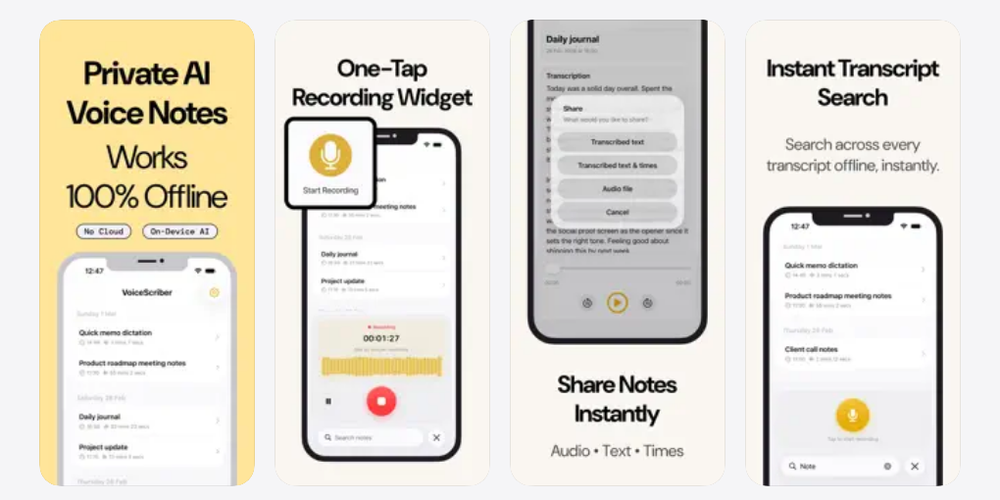
VoiceScriber suits recordings that start on iPhone and existing voice memos, meeting recordings or downloaded MP3s you want to import into the same local notes library. For in-person conversations, compare our private meeting-transcription workflows. It is not a meeting bot or a call-recording workaround; check consent, device security and your organization's requirements before recording.
2. VoiceScriber free offline speech-to-text tool - best for quick English desktop conversion
Best for: people who want to convert an English audio file to text in a browser without uploading the audio.
VoiceScriber also offers a free offline English speech-to-text tool for desktop browsers. Select a local file or record audio; the file-picker label does not mean a server upload. Only the first 60 minutes of a longer file are prepared, so split it locally first or use a desktop app for the complete recording. The tool exports TXT, timestamped TXT, JSON and SRT; VTT and batches are not offered. Load the page and model before disconnecting. MP3, WAV, M4A, AAC, OGG and FLAC support depends on browser decoding. See the English offline transcription guide.
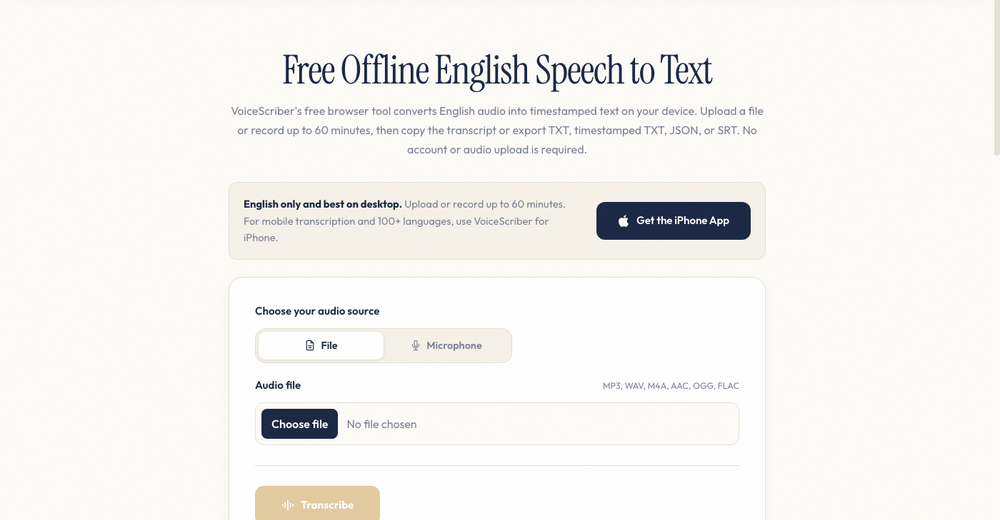
Use the browser tool for a one-off English desktop transcript. For recording and importing on iPhone, or working in the app's advertised 100+ transcription languages, try VoiceScriber AI. The iPhone app is a separate, free-to-try product, not an unlimited mobile version of the free website tool.
3. whisper.cpp - best free open-source option for technical users
Best for: developers, researchers, power users, and privacy-conscious teams comfortable installing local tools.
whisper.cpp is a high-performance C/C++ implementation of OpenAI's Whisper automatic speech recognition model. The project documents local inference across platforms including macOS, iOS, Android, Linux, Windows, WebAssembly, Raspberry Pi, and Docker.
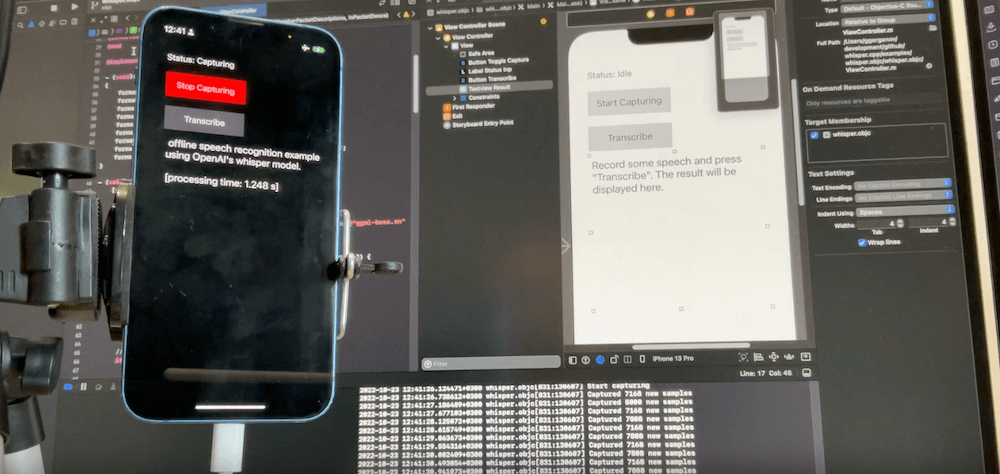
OpenAI introduced Whisper as an automatic speech recognition system trained on 680,000 hours of multilingual and multitask supervised data, which is why many local transcription tools are built around Whisper-style models. The tradeoff is setup. whisper.cpp is powerful, but it is not the easiest option for someone who wants a transcript in two minutes. The CLI supports TXT, SRT and VTT exports, with scripting for batches; the standard example uses 16-bit WAV, so other inputs may need FFmpeg conversion. OpenAI's original Whisper package is also MIT-licensed and runs locally after installing dependencies and downloading a model. See the Windows, Mac and Linux Whisper setup guide for installation steps.
The base model alone occupies 142 MiB; app storage and working memory are additional. For iPhone recording and imports without command-line setup, compare VoiceScriber AI, which is free to try rather than free open-source software.
4. MacWhisper - best free Mac app for local transcription
Best for: Mac users who want a friendly interface for local Whisper transcription.
MacWhisper offers a free basic tier for local transcription. Select a local model to keep audio on your Mac; optional cloud transcription sends it to the selected provider. The official feature list places batch transcription in Pro. Free exports include TXT, SRT and VTT, and imports include MP3, WAV, M4A, OGG, OPUS, MOV and MP4. Setup is straightforward: install the app and download a model.
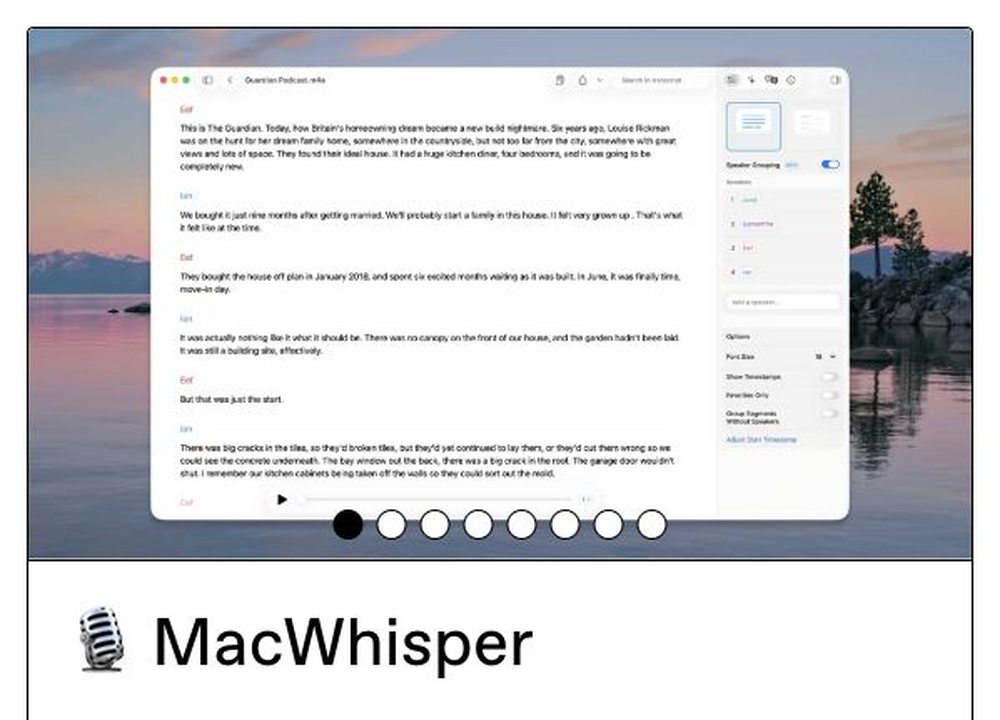
MacWhisper suits recordings already on your Mac. For capture and imports on iPhone, compare VoiceScriber AI's free-to-try recorder and searchable notes. MacWhisper direct download and App Store Whisper Transcription have different licensing and features: the current Mac App Store listing requires macOS 15+, while the direct-download minimum was not established by the documentation checked. See our OfflineTranscribe alternative comparison.
Also free on supported iPhones: Whisper Transcription's local models
Good Snooze's iOS documentation says all local models are free; cloud/AI assistance is separate. The current listing requires iOS 18+ and iPhone 13+ for local models, or iPadOS 18+ with an M-series iPad. Download a model and choose local processing. Its September 11 version 5.0 fixed downloaded models unexpectedly needing internet to load: update, then test offline reopening. Compare this genuinely free route with VoiceScriber's trial before paying.
5. Aiko - best on-device option for existing files on Apple devices
Best for: Apple users who want local transcription of existing audio or video files and do not need live editable note-taking.
Aiko's current app is paid ($24 in the US listing checked). Its 14-day trial uses TestFlight, with no automatic charge, rather than an ongoing free tier. Current requirements are iOS/iPadOS/macOS 26+ or visionOS 2+ on compatible hardware. It runs Whisper locally, supports audio in 100 languages and bundles the model in the app: that still means a substantial initial download.
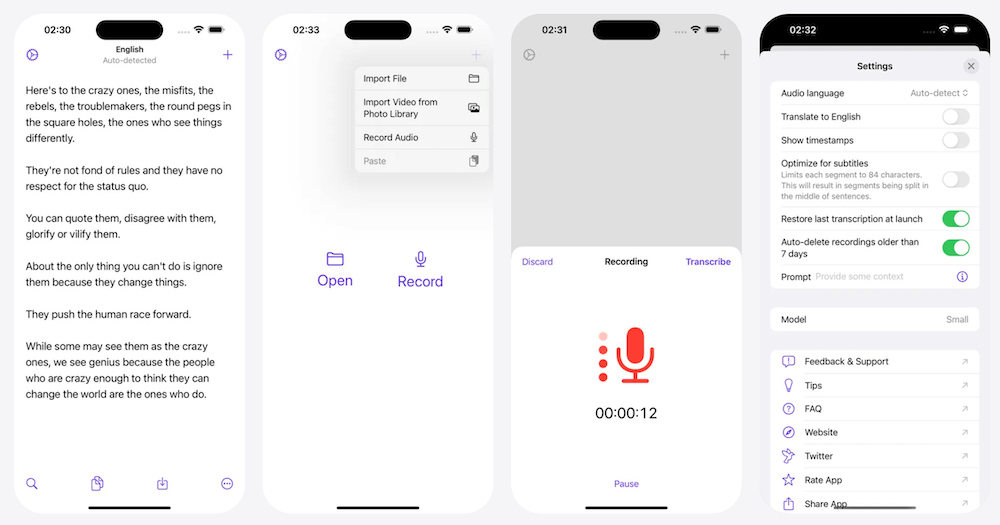
Aiko can record audio as well as import files; it does not transcribe live while recording. It accepts Apple-supported formats such as MP3, M4A, WAV, MP4 and MOV, but not OGG, and exports text and SRT. Batches use Shortcuts. Its developer documents an iOS 26 Voice Memos sharing issue and a Shortcut workaround. For an iPhone recorder with editing, search and weekly or lifetime access, also try VoiceScriber AI; it imports M4A/MP3/WAV without a desktop step.
Free legacy exception: the developer offers older Mac builds for macOS 13, 14 and 15. These are not the current paid release and do not run on newer macOS versions.
6. Whisper Web and SoundTools - local browser converters with setup downloads
Best for: desktop users who want a free browser-based converter and do not want to install an app.
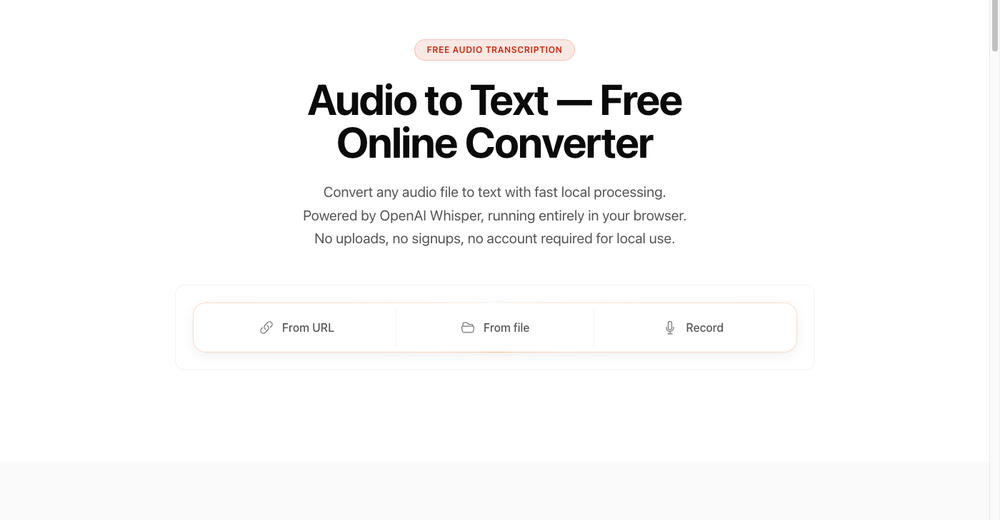
Whisper Web's local mode is free without signup for files up to 20 minutes and 200 MB each. The current converter advertises TXT and Word export, plus subtitle options. MP3, WAV, M4A, FLAC, OGG and other inputs depend on browser codecs. Its first run downloads the model. Pro uploads media for longer recordings, batches and cloud history; it is not a no-upload upgrade.
SoundTools advertises free local processing without an account or usage cap, but explicitly does not support iPhone or iPad. Use desktop Chrome, Edge or Firefox. It accepts browser-decodable audio, downloads an approximately 240 MB model, and exports TXT or SRT; timestamps/SRT need its Accurate model. That model supports 99+ languages, while Fast is English-only. No advertised cap does not guarantee that a very large file will fit your device's memory.
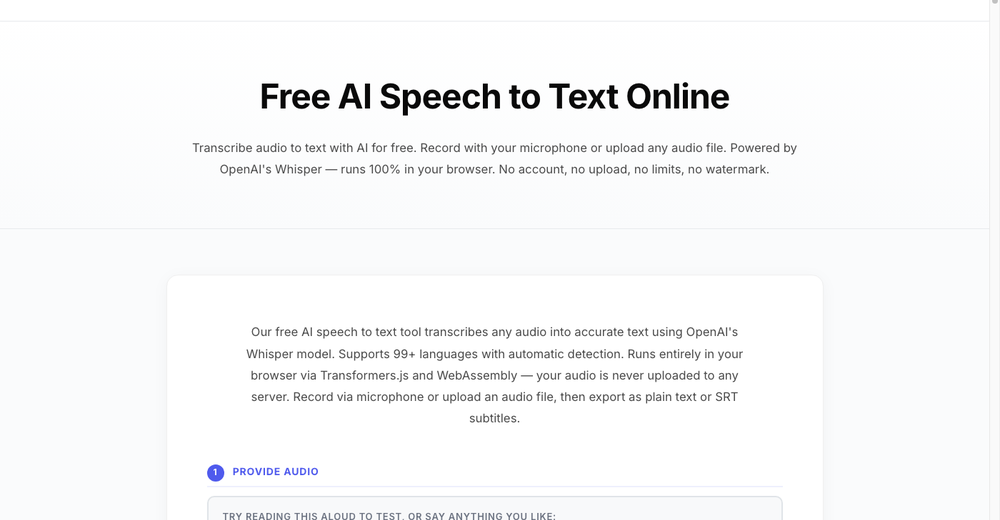
Keep the prepared browser tab open and test offline reopening separately. For recurring recording or existing MP3/M4A/WAV files on iPhone, VoiceScriber AI offers a free-to-try on-device workflow instead of a desktop-only tab. Check its trial and device limits above; it is not another unlimited free browser service.
7. Buzz - free offline transcription for Windows, Mac and Linux
Best for: desktop users who want a free graphical app. Buzz's official repository documents an MIT-licensed app with audio/video imports, microphone transcription, watched folders, and TXT, SRT and VTT exports. It can transcribe locally after downloading a model. Choose a local Whisper backend, not its OpenAI API option.
Setup is moderate: install Buzz, download a model, then import recordings. Its file-import workflow handles common audio/video inputs through FFmpeg. On Intel Macs, check the release carefully: version 1.4.5 is the last supported Intel release according to the project's current README. The separate paid Buzz Classic product is not required for the open-source app. For an iPhone-first workflow rather than moving recordings to a computer, compare VoiceScriber AI and its trial limits.
8. Subtitle Edit - free transcription with subtitle editing
Best for: creating and correcting timed captions. Subtitle Edit 5.2.0, released September 10, has Windows, macOS and Linux builds. Its speech-to-text documentation lists local Whisper CPP on all three, with engine and model downloads on first use. Online engines are also available, so select a local engine for no-upload transcription.
The current MIT-licensed project lists Windows 10 22H2+ and macOS 12+ (14+ recommended); Linux dependencies vary by package. The editor imports audio/video for transcription, saves SRT and WebVTT subtitles, and can export plain text. Its speech-to-text batch mode produces SRT files beside the source videos. Setup is moderate: install the app and local engine, then download a model. Choose Subtitle Edit for caption timing and corrections. For iPhone notes rather than SRT/VTT production, compare VoiceScriber AI; its documented sharing/PDF workflow is not a native subtitle-export replacement.
Cloud converters can still be useful, but they are not no-upload
There is nothing wrong with cloud transcription when the audio is low-risk or when you need collaboration, speaker labels, summaries, integrations, team workspaces, or enterprise controls. The problem is that many "best free audio-to-text converter" lists blur the difference between secure cloud upload and no upload.
For example, Notta's audio-to-text converter is built around uploading audio or video files, VEED's recording transcription tool is also an upload or record workflow, and Otter's free AI transcription page describes cloud meeting transcription and audio/video upload support. Those tools can be useful, but they are not strict no-upload converters.
If you are choosing between privacy and collaboration, start with the workflow rather than the brand. Use cloud tools when their collaboration features and data-handling terms meet your needs. Use no-upload tools when the recording itself should not leave your device. For a deeper cloud comparison, see VoiceScriber vs cloud transcription and the Otter.ai offline alternative guide.
How to convert audio to text without uploading it
Already using Voice Memos? Apple includes transcription on iPhone 12+ for supported languages and regions. Check that first for an existing memo. For the dedicated recording/import workflow below, VoiceScriber is free to try.
If you are recording on iPhone
- Download VoiceScriber AI from the App Store.
- Finish setup online, confirm the free allowance and allow microphone access.
- Choose your language and complete any model download before disconnecting.
- Start recording.
- Stop and review the transcript.
- Edit, search, copy, or share your text.
The advantage is that your voice note starts private. You do not create a separate audio file and then upload it somewhere else later.
If you already have an MP3, WAV, or M4A file on iPhone
- Open VoiceScriber AI.
- Tap the import button next to the mic.
- Pick an M4A, MP3 or WAV file stored locally on your device, not a cloud-only placeholder.
- Let it transcribe on-device, then edit, search, copy, or share the text.
This covers old Voice Memos, meeting recordings someone sent you, or downloaded MP3s, all without leaving the app you already use for new recordings.
If you already have an MP3, WAV, or M4A file on desktop
Start with VoiceScriber's free offline browser tool for English audio. For a free desktop app, try Buzz on Windows, Mac or Linux. Mac users can also try MacWhisper, while technical users can run whisper.cpp locally.
If you have a folder of many recordings
Use a desktop workflow. Buzz supports watched folders. MacWhisper batch transcription requires Pro, while whisper.cpp suits automation and scripting. Subtitle Edit is useful for batches of subtitle files.
If you need team collaboration
Use a cloud transcription service knowingly. Tools such as Otter, Notta, Happy Scribe, and similar services can be useful for shared workspaces, integrations, summaries, and team workflows. Just do not treat them as no-upload converters.
Reproducible offline conversion test
Test a fresh file after disconnecting, not a transcript created earlier. This procedure checks one app, model and device configuration; the comparison above reports documented capabilities, not measured passes.
- Prepare the same sample. Record the text below as a local WAV, MP3 or M4A. Do not import it into the converter yet. Keep the file and its duration for repeat tests.
- Finish online setup. Install the app, model and dependencies; select local mode. Warm up with a different disposable clip so the test file has not already been processed.
- Disconnect first. On iPhone, enable Airplane Mode and explicitly turn Wi-Fi off in Settings. On desktop, disconnect Wi-Fi, Ethernet and tethering. Apple confirms that Wi-Fi can still be used in Airplane Mode.
- Import, convert and export. While disconnected, open the untouched sample, transcribe it fully, and save text to local storage. Check the beginning, number, time and final sentence. A saved recording or partial transcript is not a complete conversion pass.
- Test reopening separately. Close and reopen the app or browser while still disconnected, then convert a different, previously unprocessed recording. Log a browser that works only in its prepared tab as a session-only pass.
- Record the conditions. Save app/version, device/OS, model/language, format, duration, setup-download size, free/paid state, elapsed conversion time, export result and restart result. Repeat with your real language and file length before relying on it.
Offline check alpha. The blue folder contains seventeen pages. The meeting starts at nine thirty on Thursday. Keep the original recording and review every name and number. End of offline check alpha.
What a pass does not prove: offline conversion is not a full privacy audit. Backups, optional AI, sharing or queued transfers may behave differently after reconnection. A separate browser check can inspect requests with Chrome's Network panel, but it does not cover every device process. Review important output: the Whisper model card documents possible errors and unsupported text.
Which converter should you choose?
Choose Buzz for free desktop transcription, Subtitle Edit for captions, or whisper.cpp for scripting. MacWhisper has a free basic tier, and supported iPhones can use Whisper Transcription's free local models. Choose VoiceScriber's free browser tool for English desktop files up to 60 minutes, or try VoiceScriber AI for an iPhone recorder and imported-audio library. Check trial limits before paying; Aiko's current app is paid after its trial.
FAQ
What is the best free audio-to-text converter that does not upload files?
For free desktop transcription, start with Buzz, Subtitle Edit or whisper.cpp; MacWhisper has a free basic tier. On supported iPhones, Whisper Transcription offers free local models. For a no-account recorder and file imports, VoiceScriber AI is free to try, not unlimited free. Aiko's current app requires a purchase after its trial.
Can I convert MP3 to text for free without uploading it?
Yes. Buzz, MacWhisper and local browser tools can process MP3 files without uploading audio. With whisper.cpp, you may need to convert the MP3 to 16-bit WAV first. Download any required models before disconnecting.
Can I import an existing MP3, M4A, or WAV file on my iPhone instead of recording it live?
Yes. VoiceScriber AI has an import button next to the mic that lets you pick an M4A, MP3, or WAV file already on your iPhone and transcribe it on-device, the same way it transcribes live recordings.
Does VoiceScriber upload my recordings?
VoiceScriber's product documentation says recording and imported-audio transcription happen on-device, without a transcription-server upload. Its App Store privacy label is developer-reported. Choosing to share or export a recording or transcript is a separate action; check the destination and your device backup settings.
Is offline transcription as accurate as cloud transcription?
It can be accurate, especially with clear audio and modern on-device models. Accuracy still depends on microphone quality, background noise, accents, language, and model size. Always review transcripts that matter.
Are online audio-to-text converters safe?
Some are professionally run and secure, but "safe" is not the same as "no upload." A cloud converter can encrypt your file and still process it on remote servers. For confidential audio, local transcription reduces exposure because the recording does not need to leave your device.
Can I transcribe audio without internet?
Yes, once the app or local engine and required models are installed. Buzz, Subtitle Edit with a local engine, MacWhisper, Aiko and whisper.cpp support local processing. Browser tools need the page and model loaded first; a cached model alone does not guarantee the page will reopen offline.
Private audio should stay private
Try recording, importing and searching notes in VoiceScriber AI on iPhone. Transcription runs on-device after setup. Free to try; confirm the current allowance and weekly or lifetime offer in the app.
Download VoiceScriber AI on the App StoreAlready have an Apple recording? Follow our offline Voice Memo transcription workflow for iPhone.