
If the episode already has a transcript, open it in Apple Podcasts and tap View Transcript. If you have the audio file, such as your own episode, an interview, or a downloaded MP3, import it into VoiceScriber to transcribe it 100% offline on your iPhone in 100+ languages.
Quick answer
For an episode you’re listening to, check View Transcript in Apple Podcasts, the episode page in Spotify, or the video description on YouTube. If you have the recording, open VoiceScriber and import an MP3, M4A, or WAV file up to 90 minutes long. The app turns speech into editable text 100% offline. Your audio stays on the iPhone during transcription. Split longer files before importing them.
Read a podcast transcript that already exists
Apple Podcasts
- Open Podcasts and find the episode. In the episode’s More menu, tap View Transcript. You can also touch and hold the episode, then tap View Transcript.
- If the episode is playing, tap the mini player to open Now Playing, then tap the View Transcript button. On iOS 27, it’s below the volume slider. Tap a paragraph to jump to that point in the audio, or swipe up and tap Search to find a phrase.
- To copy an excerpt, select the text in the episode’s transcript and tap Copy. Apple allows up to 200 words and adds an episode link and attribution when you share an excerpt.
Transcripts arrived with iOS 17.4 and are available on iOS 26 and 27. Apple currently lists 11 transcript languages across more than 170 countries and regions. They are Danish, Dutch, English, Finnish, French, German, Italian, Norwegian, Portuguese, Spanish, and Swedish.
Apple generates transcripts for eligible episodes after publication and tells creators to allow at least 24 hours before troubleshooting. Apple omits song lyrics and dynamically inserted segments that have changed since transcription. Apple documents offline listening for downloaded episodes. Offline access to the transcript itself is undocumented.
If you publish the show, select Display transcripts I provide in Apple Podcasts Connect and have your host point the RSS podcast:transcript tag at your VTT or SRT file. For subscriber episodes, you can upload VTT or SRT in Apple Podcasts Connect. You can also download Apple’s generated transcript in Connect, correct it, and submit the revised file through your feed.
Spotify
In Spotify on iPhone, open the episode page and look for its transcript. If you’re already listening, open Now Playing and look for the transcript there. Spotify says some shows have automatically generated transcripts and some have translations. Availability varies by show, and Spotify’s current help gives no complete language or market list.
YouTube
If the podcast has a video on YouTube, expand the video description and look for Show transcript. YouTube Help says a video with captions has a transcript and that you can tap a line to jump to that point. Its iPhone help URL describes the control without specifying whether it appears in the YouTube app, in Safari, or in both.
How to transcribe a podcast on iPhone with VoiceScriber
VoiceScriber AI: Voice to Text is an iPhone app for iOS 18.0 or later. The file import works with M4A, MP3, and WAV, up to 90 minutes each. Podcast links and RSS feeds aren’t supported as inputs. Start with the audio itself.
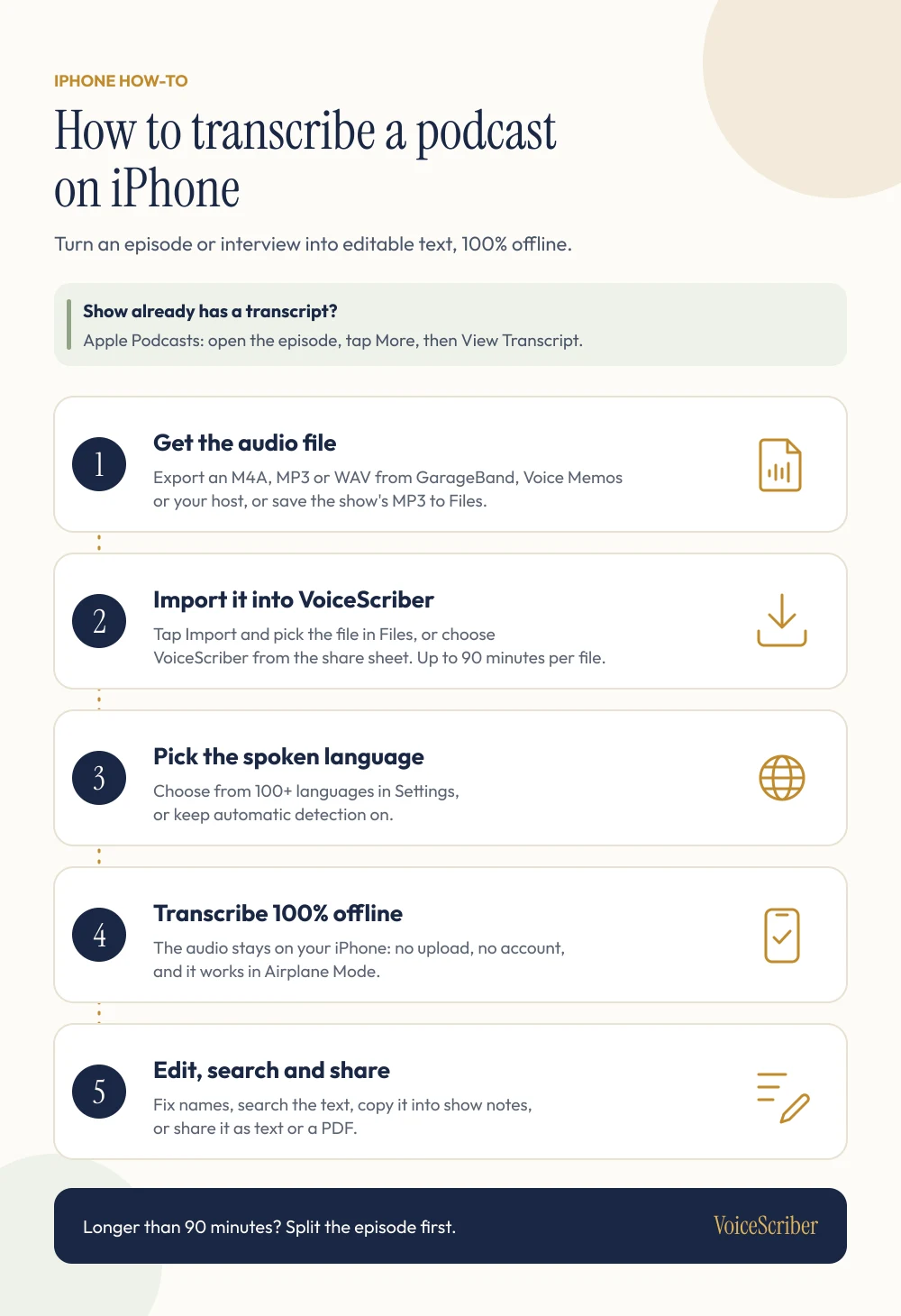
- Get the audio file. In GarageBand’s My Songs browser, touch and hold the project and tap Share > Song. Choose Uncompressed (WAV), tap Share, and choose Save to Files. In Voice Memos, tap the recording, then More > Share > Save to Files to export an M4A. Choose a folder and tap Save. See the Voice Memos transcription walkthrough for that route. If you recorded in Riverside, download the audio from your project. For a published episode, use your host’s audio download or save the public MP3 from the show’s site to Files.
- Import the file. In VoiceScriber, tap the import button next to the microphone and choose the file in Files. Or open the file’s share sheet and select VoiceScriber. For manual language selection, set it before picking the file.
- Check the spoken language. Leave automatic detection on or choose the spoken language in Settings. The offline multilingual transcription guide explains how language selection works.
- Let the app transcribe the file. Transcription runs 100% offline, including in Airplane Mode once the app is ready. The audio never goes to a transcription server, and you don’t need an account. The App Store privacy label says “Data Not Collected.”
- Review and use the transcript. Open the result and edit, search, copy, or share the text. Check names, numbers, and terms you’ll quote against the audio. You can also share the original recording or print the note and save it as a PDF.
Record an interview or solo episode on iPhone
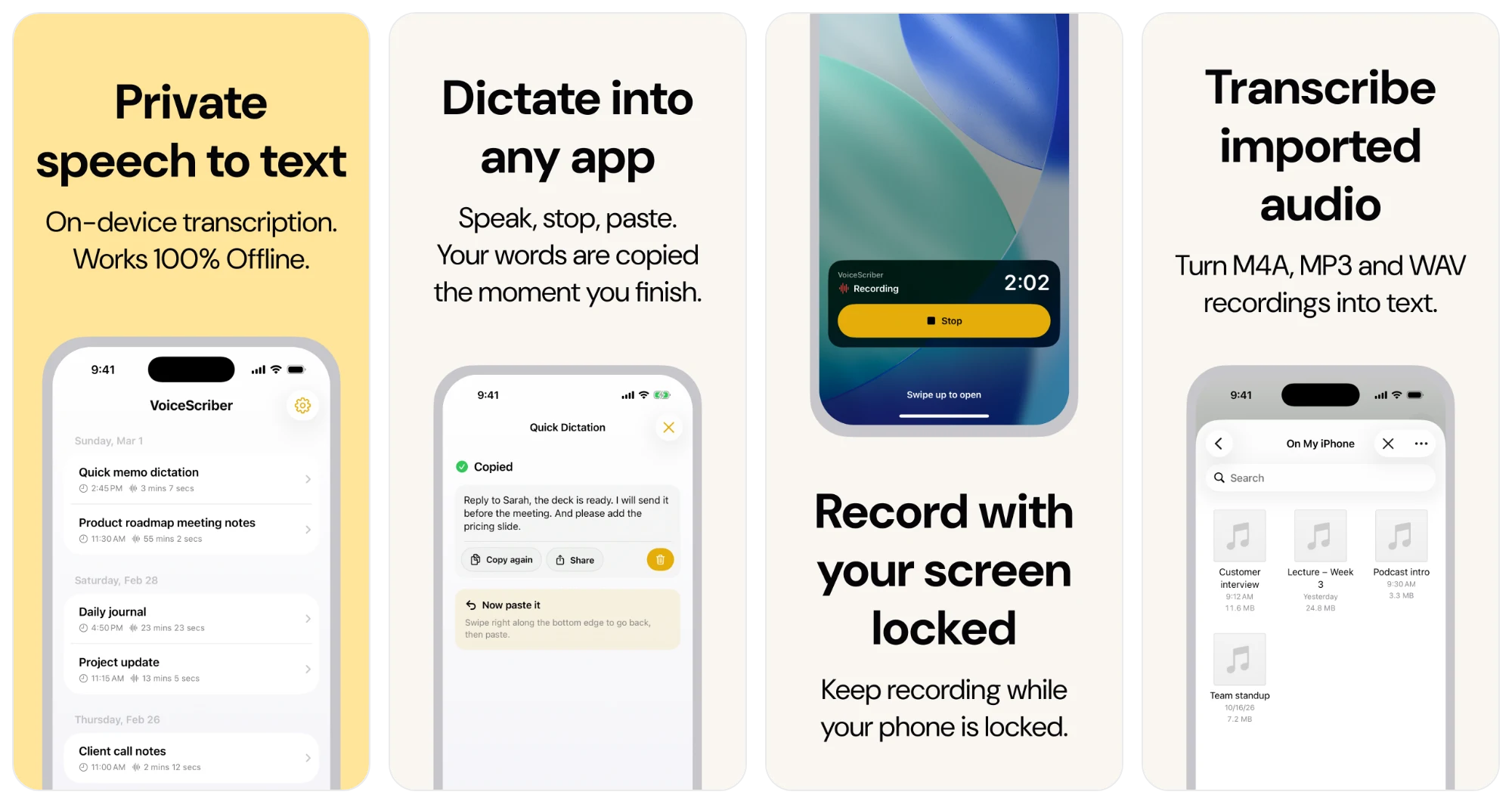
If you’re about to record, open VoiceScriber and tap the microphone. It records for up to 90 minutes, including while the screen is locked. Tap Stop when you finish and the app transcribes the recording on the iPhone.
For an interview, set the phone on a stable surface near both speakers. Record a short sample and move the microphone closer or farther away if one person sounds too quiet or too loud. Ask your guest before you start recording and tell them how you plan to use the audio. For field interviews, see the offline transcription guide for journalists.
Split episodes longer than 90 minutes
Use the free GarageBand app to split a file you already have. For a two-hour interview, aim for two files of roughly an hour. Pick a natural break in the conversation so you can read the two transcripts in sequence.
- Touch and hold the GarageBand icon and tap Create New Audio Recording. This starts with Time Ruler on and the section length set to Automatic. For a two-hour file, open Settings, set Tempo to 60 beats per minute, and choose 4/4 under Time Signature. Imported audio keeps its playback speed.
- Tap Tracks > Loop Browser > Files > Browse items from the Files app. Choose the audio, then drag it from the file list to the start of the track. Check that the end of the recording made it in. GarageBand projects top out at 2,000 bars. If the file still runs beyond the timeline at a slower tempo, get shorter exports from the original recording project or platform first.
- Tap the audio region, tap it again, and choose Split. Drag the scissors marker to the break and drag it down. Repeat at other breaks as needed, keeping each part under 90 minutes.
- Go to My Songs. Touch and hold the project and tap Duplicate to make one copy per part. In each copy, delete the other regions and move the part you’re keeping to the start of the track. From My Songs, choose Share > Song > Uncompressed (WAV) > Share > Save to Files.
- Name the files in order, such as Interview-01.wav and Interview-02.wav. Check that each export is 90 minutes or less, then import them one at a time.
Get a public episode’s audio file on iPhone
- Open the show’s episode page in Safari and find its direct MP3 or audio download link. If the show publishes a public RSS feed and you can view its XML, find the episode’s <enclosure> URL. That URL points to the media file.
- Touch and hold the direct link, then tap Download Linked File when it appears. If the site has a download button, use that and confirm the download if Safari prompts you.
- Open Files > Browse > Downloads, or tap Downloads next to Safari’s search field. Look under iCloud Drive or On My iPhone, depending on your Safari download settings. To save future downloads locally, choose Settings > Apps > Safari > Downloads > On My iPhone.
Apple documents in-app podcast downloads for offline listening. It does not document an export to Files, and VoiceScriber can’t pull audio from the Podcasts app. Use the show’s audio link when you need a file to import.
Keep personal notes private. Before republishing a full transcript of someone else’s copyrighted episode, get permission from the rights holder.
What to do with the transcript
Turn your own episode into show notes by pulling out the main topics, guest names, and links listeners might want. For a blog post, start with one idea from the episode and build it out with a checked quote or example. The voice-notes-to-blog-post workflow shows how to turn a spoken draft into an article.
Save short, checked pull quotes for social posts. For an archive, give each transcript the episode title and number so you can find it later by guest, topic, or phrase. For video captions, use a captioning tool that exports SRT or VTT. VoiceScriber exports transcript text and has no subtitle export, timestamps, or speaker labels.
Compare podcast transcription options
| Option | VoiceScriber | Built-in transcripts (Apple Podcasts / Spotify / YouTube) | Link or upload tools (Wave, Otter, Adobe Podcast Studio) |
|---|---|---|---|
| What you need | An M4A, MP3, or WAV file, or a recording made in the app | An episode or video with a transcript available. No separate file needed. | A public link for Wave’s podcast tool, or a file for Wave’s uploader, Otter’s file import, or Adobe Studio on desktop Chrome. |
| Where the audio goes | Stays on the iPhone, transcribed 100% offline | The service already hosts or distributes the episode. Reading its transcript requires no upload from you. | Wave fetches public audio or receives a file online. Otter uses cloud storage. Adobe takes an upload for transcription. |
| Languages | 100+ spoken languages | Apple lists 11. Spotify transcript availability varies by show. YouTube depends on the caption track. | Wave’s upload tool lists 15 choices, Otter lists 17, and Adobe lists seven. |
| Length limit | 90 minutes per file or recording | Varies. Apple says episodes over 10 hours may go untranscribed. | Free limits are Wave 60 minutes per episode link or upload, Otter 30 minutes per transcript, and Adobe 30 minutes per project. |
| Speaker labels and timestamps | Neither | Apple, Spotify, and YouTube can sync text with playback. Apple displays speaker names if the creator includes them in VTT. | Wave and Otter offer labels and timestamps. Adobe offers speaker detection where supported and highlights words during playback. |
| Subtitle export | No SRT or VTT | Viewer transcript export is undocumented. Some creator workflows offer timed files. | Wave’s uploader offers SRT and VTT. Otter offers SRT on paid plans. Adobe Studio lists TXT, PDF, and DOCX transcript downloads. |
| Unreleased audio | Yes, from a file or a recording | Requires an episode or video available to the listener on the service. | Yes, by uploading the audio to a supported service. Wave’s link tool requires a public URL. |
| Cost | Free to download and try, then Weekly $5.99 or Lifetime $49.99 one-time | No separate transcript fee is documented for freely available episodes or videos. | Free limits include Wave’s five jobs per browser per day, Otter Basic’s three total imports and 300 minutes per month, and Adobe Studio’s two project downloads per day. |
If you need subtitles, longer uploads, or named speakers, the transcription app comparison covers those features in more detail.
Bottom line
If the show already has a transcript, open it in your listening app first. If you have an unreleased episode or an interview file, VoiceScriber gives you an editable transcript while keeping the audio on your iPhone. Import an M4A, MP3, or WAV up to 90 minutes, or split a longer recording before you start. Choose a captioning tool if you need a timed subtitle file.
FAQs
How do I get a transcript of a podcast on iPhone?
Open the episode in Apple Podcasts and choose View Transcript if it’s available. You can also check Spotify’s episode page or a captioned video on YouTube. If you have the recording, import the M4A, MP3, or WAV into VoiceScriber to transcribe it on your iPhone.
How do I copy the transcript of a podcast?
In Apple Podcasts, open View Transcript from the episode details, select the words you want, then tap Copy. Apple allows you to copy up to 200 words and attaches attribution and an episode link to shared excerpts. For your own audio, VoiceScriber lets you copy or share the transcript you make.
Can ChatGPT transcribe a podcast?
Yes, for short audio files on eligible paid plans and workspaces. OpenAI documents uploaded-audio transcription with GPT-6 at Instant in Chat, up to six minutes per recording. OpenAI doesn’t specify which iPhone app versions support it, and the audio is uploaded to OpenAI’s service. ChatGPT Record is a separate recording feature in ChatGPT Classic for macOS.
Is there a free way to transcribe a podcast?
Start with the episode’s built-in transcript if there is one. For a public episode that needs transcription, Wave’s free podcast tool accepts an Apple Podcasts episode link, public RSS feed, or direct audio URL, with a 60-minute limit per episode and five jobs per browser per day shared with its upload tool. VoiceScriber is free to download and try with an audio file.
Can I transcribe a podcast without uploading it?
Yes. Import an M4A, MP3, or WAV file up to 90 minutes into VoiceScriber. Transcription runs 100% offline on the iPhone, including in Airplane Mode, and the app needs no account.
How do I transcribe a podcast longer than 90 minutes?
Use GarageBand to split the recording into regions, then export each part as a WAV file of 90 minutes or less. Name the parts in order and import them one by one into VoiceScriber.
Can VoiceScriber make subtitles or show who is speaking?
VoiceScriber exports transcript text. It has no speaker labels, timestamps, or SRT or VTT export. For subtitles, use a captioning tool that creates timed files. If you need to tell speakers apart in an interview transcript, choose a tool with speaker detection or add names while you edit.
Can I transcribe a podcast in another language?
Yes. VoiceScriber supports 100+ spoken languages. Choose the language spoken in the recording in Settings or use automatic detection.
Sources
All sources checked on November 28, 2026.
- Apple Support. Apple security releases, iOS 27 transcript controls, iOS 26 transcript controls, and episode downloads.
- Apple Newsroom. Introduction of Apple Podcasts transcripts, March 5, 2024.
- Apple Podcasts for Creators. Transcripts on Apple Podcasts, Create an episode, and Podcast RSS feed requirements.
- Apple Support, Safari. Browse the web, Find Safari downloads, and Set the download location.
- Apple Support, Voice Memos. Export to Files, iOS 27, Export to Files, iOS 26, Share a recording, Trim or save as a new recording, and Microphone placement.
- Apple, GarageBand. App Store listing, Create and duplicate songs, Tempo and Time Ruler, Song sections and project length, Import files, Split and move regions, Share a song, and WAV and AIFF export options.
- Spotify for Creators. Managing episode transcripts on Spotify.
- YouTube Help. View video transcripts, iOS URL, View video transcripts, desktop URL, Automatic caption languages, and Add subtitles and captions.
- VoiceScriber. US App Store listing, Product facts, Developer overview, and US pricing.
- Riverside Help Center. Download high-quality tracks.
- Wave AI. Podcast link tool, Web audio uploader, and Privacy policy.
- Otter.ai. Basic plan limits, Audio and video import, Languages, Exports, and Privacy and security.
- Adobe Podcast. Transcription workflow, Free and Premium limits, Technical requirements, and Studio FAQ.
- Podtyper. Workflow, Free allowance and formats, and Privacy policy.
- OpenAI Help Center. Uploading files and audio to ChatGPT, How OpenAI handles data in consumer services, and ChatGPT Record.
- U.S. Copyright Office. Copyright law, sections 106 and 107, Fair use FAQ, and How to obtain permission.